Connect an Alta Server
Vision manages cameras through one or more Cesbo Alta media servers. Add at least one before adding cameras — until then, Cameras and Live View show Add Alta server instead of an empty list.
Add a server
Section titled “Add a server”Go to Settings → Connections and click Add Server.
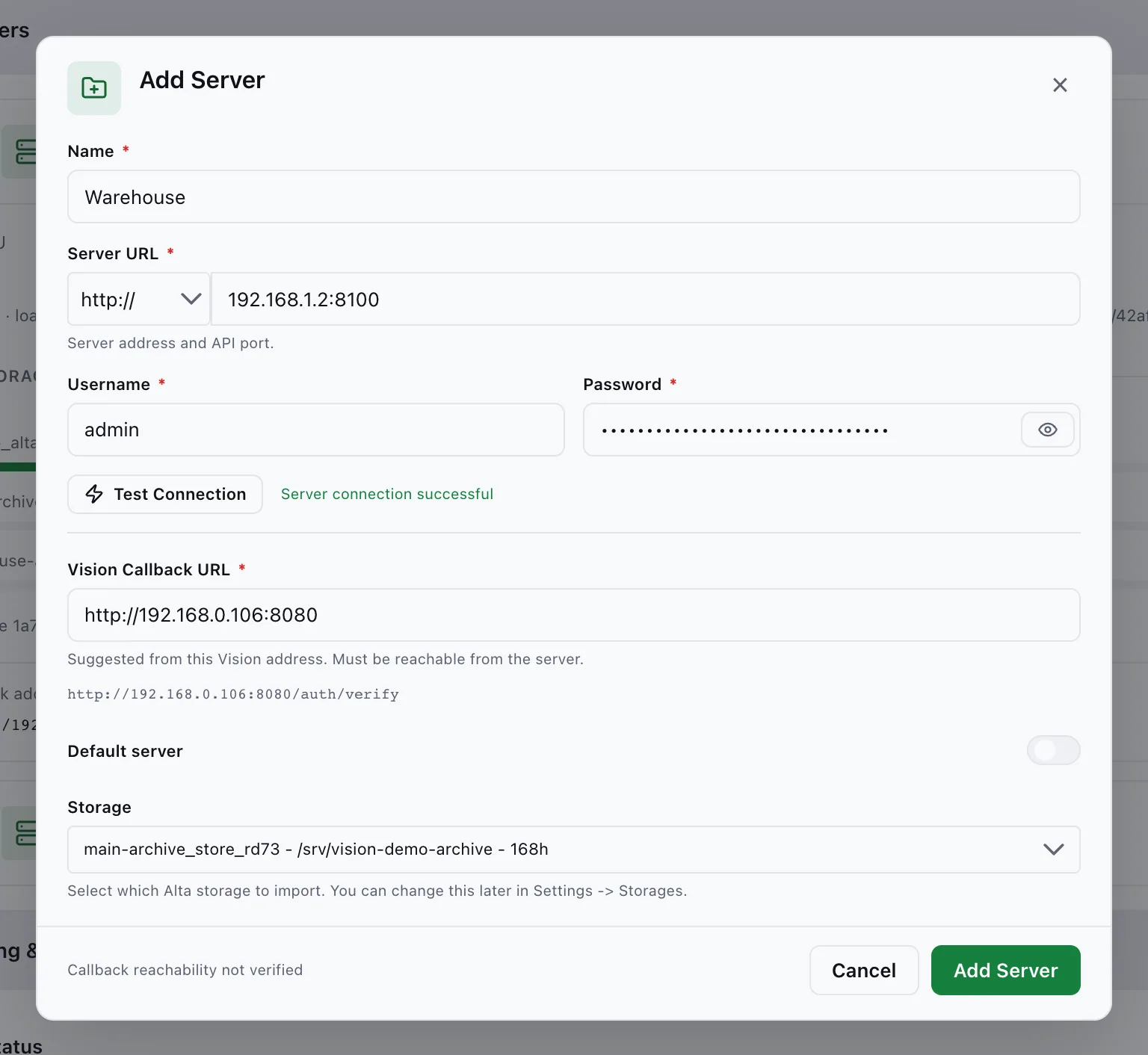
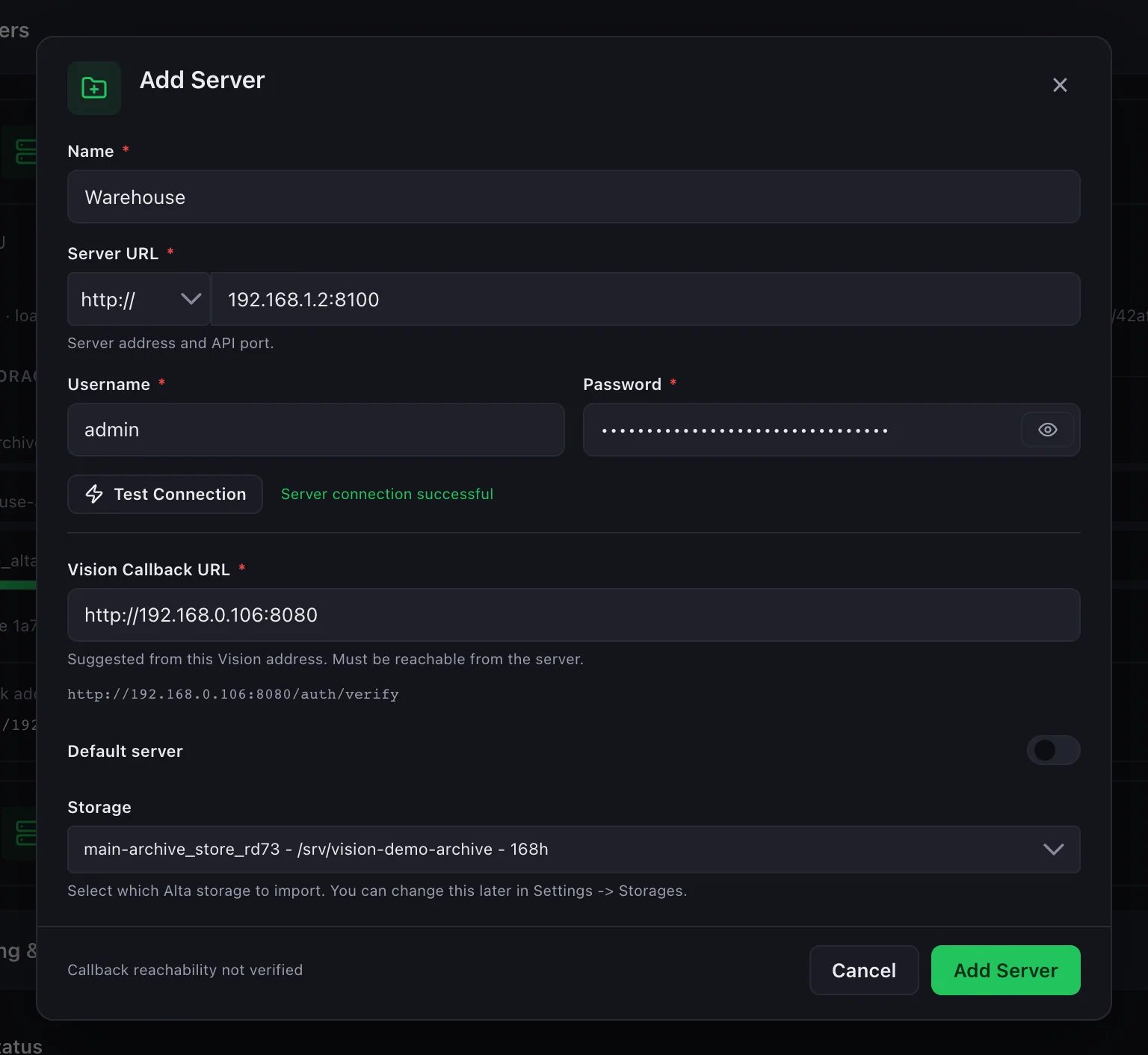
| Field | What to enter |
|---|---|
| Name | A label, e.g. Main Office. |
| Server URL | Alta address and API port, e.g. http://192.168.0.10:<port>. |
| Username / Password | The Alta admin account. Your browser no longer offers to save it as this site’s login. |
| Vision Callback URL | The address Alta uses to reach Vision for WebRTC authorization, e.g. http://192.168.0.20:3303. |
| OTT Base URL | Optional. Alta’s streaming address; leave blank to read it from Alta. |
Click Test Connection before saving. A wrong or unreachable URL is reported with the reason (for example connection refused), not as an internal error.
Credentials are encrypted at rest (AES-256-GCM). If adding a server fails partway, everything already created on Alta is rolled back.
Servers list
Section titled “Servers list”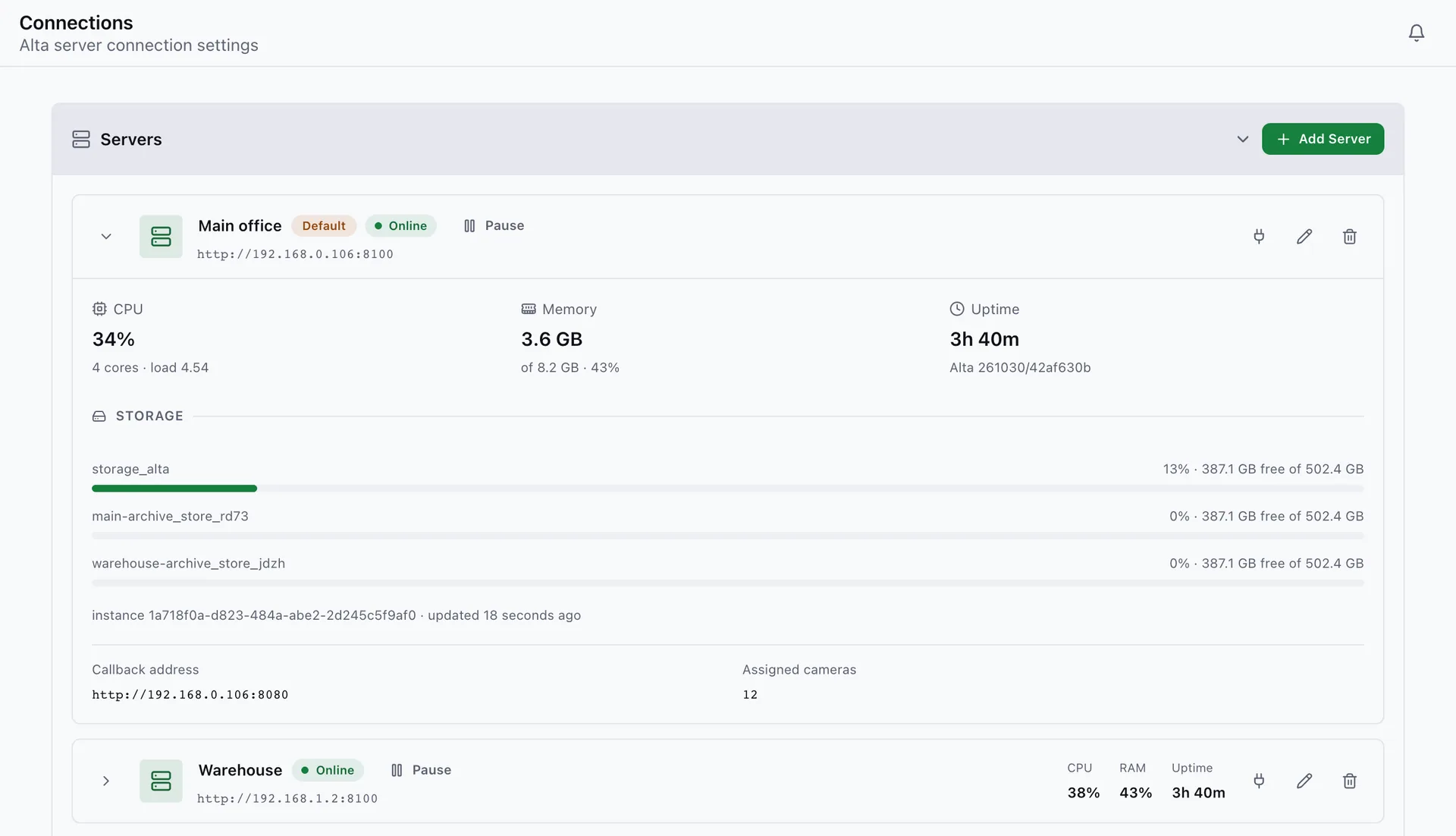
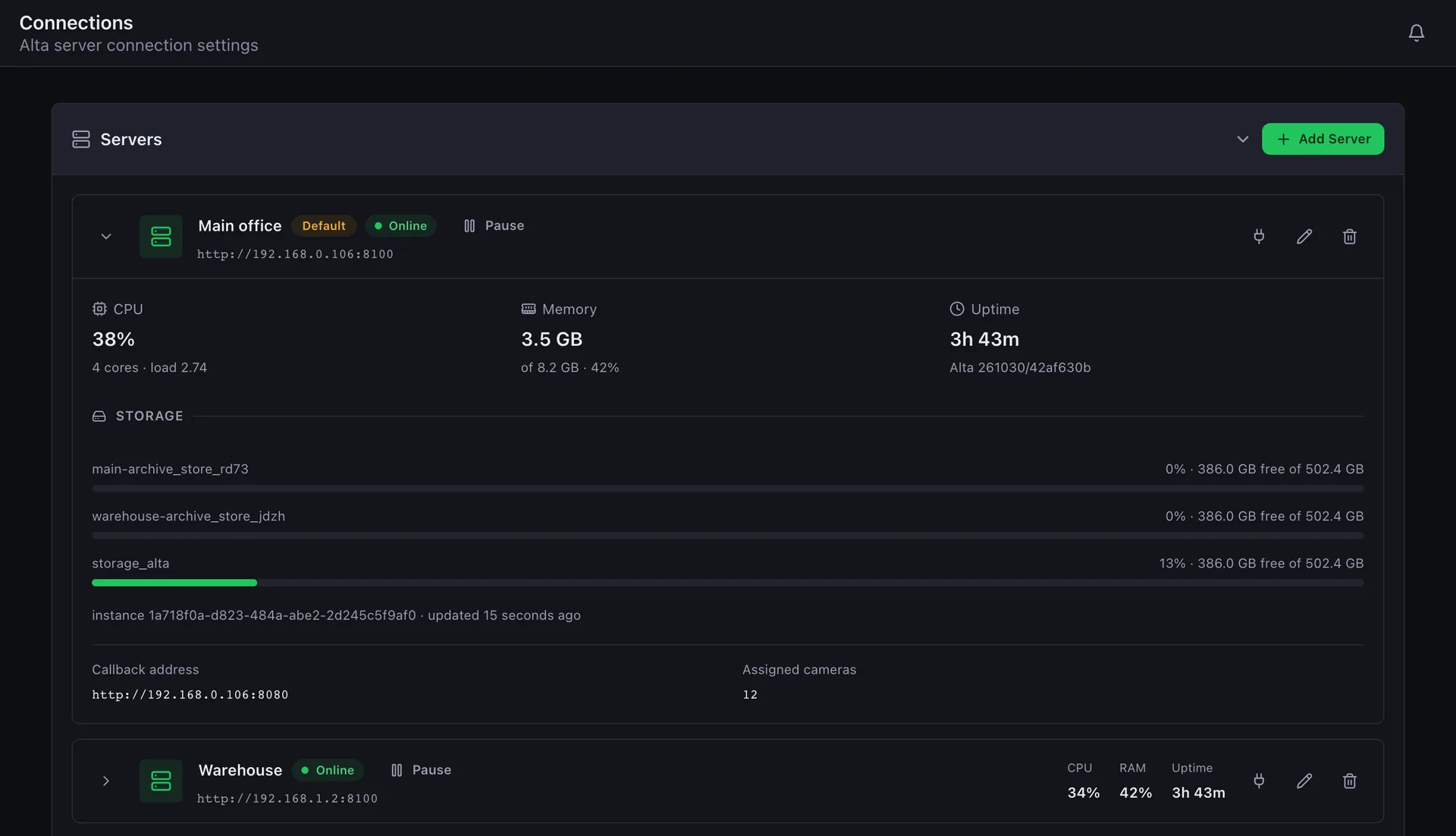
Each row shows the server status: healthy, unavailable, paused, or config drift. Row buttons:
- Test connection (plug icon) — checks with the stored credentials. If cameras drifted on Alta, it opens the config drift dialog.
- Edit — with Username/Password left blank and the address unchanged, Test Connection uses the stored credentials.
- Pause / Resume — see below.
- Remove — removes the server, its cameras, and storages.
Pause or resume a server
Section titled “Pause or resume a server”Pause a server before maintenance. Vision stops checking it, its cameras show Paused, and no outage alerts fire. Resume restarts the checks and pushes any edits made while paused.
A paused server can be removed without contacting Alta: the dialog asks you to type the server name instead of credentials and removes it from Vision only. A paused server cannot be the Default server.
Server telemetry
Section titled “Server telemetry”Expand a row to see the Alta host: CPU, Memory, Uptime with the Alta version, and one Storage bar per recording volume. Colours follow the Telemetry Alerts thresholds. Servers on older Alta builds have no expand arrow.
Polling & Sync
Section titled “Polling & Sync”| Setting | Range | Default | Controls |
|---|---|---|---|
| Camera health interval | 1–30 s | 3 | How fast a camera status change shows up |
| Server ping interval | 1–10 s | 1 | How fast an outage or restart is detected |
| Server status | 10–300 s | 15 | Telemetry refresh |
| Server config | 60–3600 s | 300 | Config-drift scan |
A value outside the range is refused with Allowed range: … under the field — nothing is saved.
Telemetry Alerts
Section titled “Telemetry Alerts”Thresholds for alerts on the Alta host. 0 disables a tier.
| Setting | Default | Rule |
|---|---|---|
| Storage free — warning / critical | 10 % / 5 % | Warning must be above critical (free space is a floor) |
| Host CPU — warning / critical | 85 % / 95 % | Warning must be below critical |
| Host RAM — warning / critical | 90 % / 97 % | Warning must be below critical |
Blips, restarts, and outages
Section titled “Blips, restarts, and outages”Vision checks twice before it reacts, so a short hiccup does not flip every camera offline:
- Connectivity blip — briefly unreachable, Alta did not restart. Cameras keep their status; info event.
- Restart — Alta’s instance ID or uptime changed. Live streams drop and recover; warning event.
- Unavailable — stays unreachable. Detected in about 5 seconds; its cameras go offline, other servers keep running.
On live walls, an unreachable server is shown as one server problem — see Live Monitoring.
Config drift
Section titled “Config drift”When Alta’s configuration differs from what Vision expects, the server shows Config drift. Click the badge to open the report.
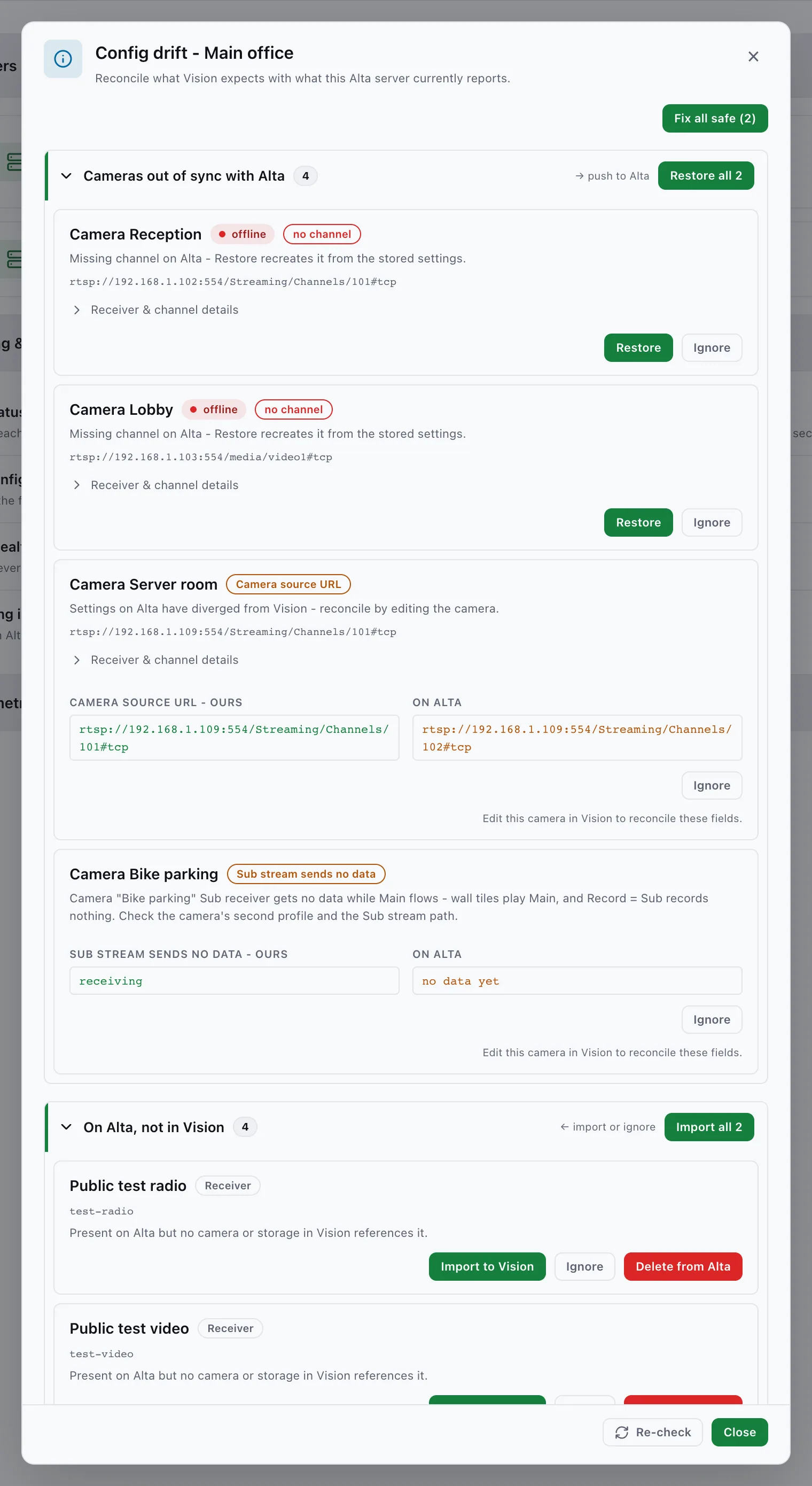
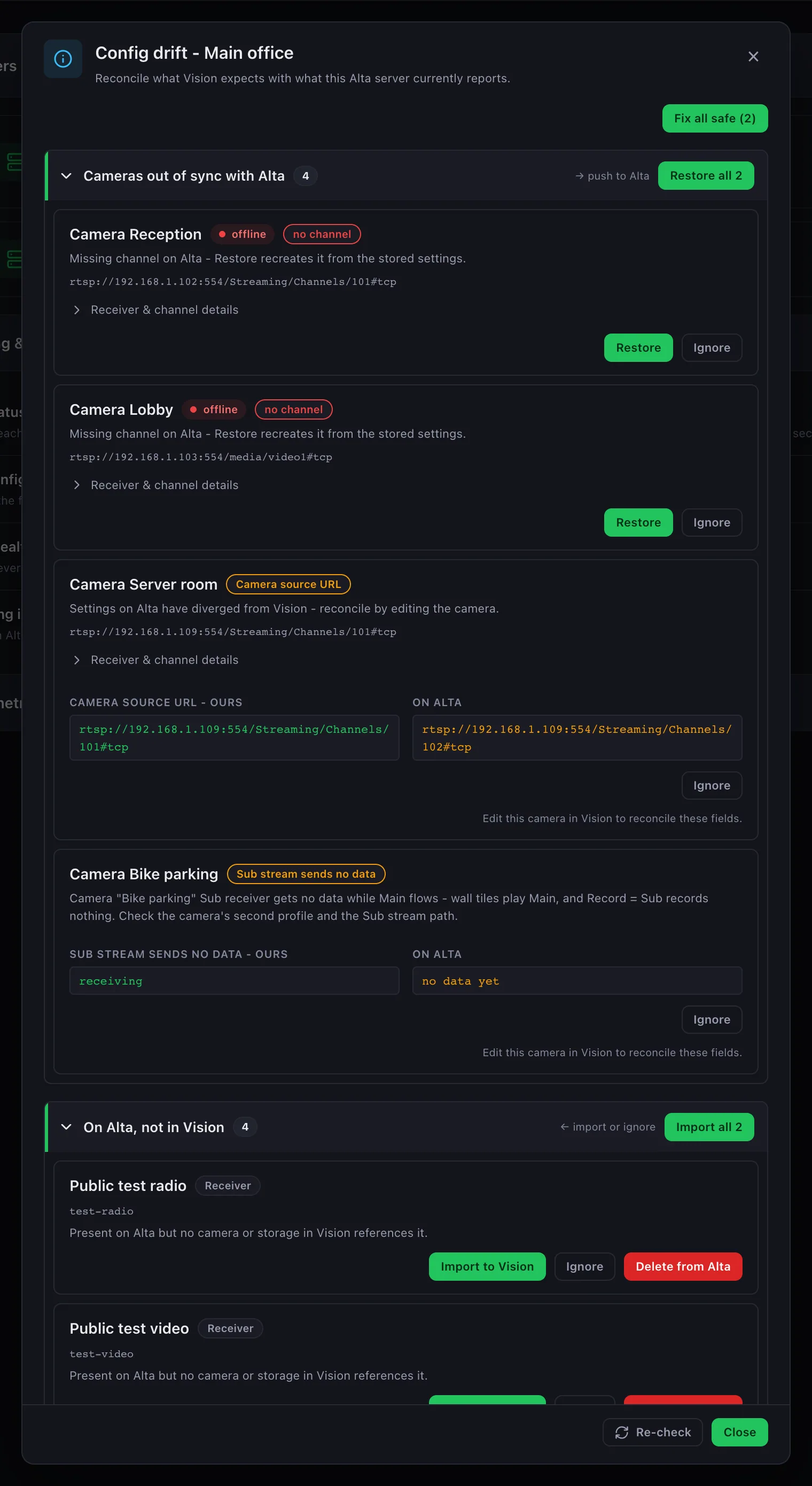
The report has up to four groups:
- Configuration — server settings (authorizer, storage, VOD path, callback). Apply to Alta pushes the stored value.
- Cameras out of sync with Alta — a missing receiver, channel, or Sub stream (Restore recreates it), a recording flag that differs from the camera’s Record setting (Camera recording on Alta → Restore), or a changed source URL. Fields that can only be fixed in Vision say so.
- On Alta, not in Vision — resources on Alta with no matching camera.
- Ignored — resources you chose to leave alone. Stop ignoring brings one back.
Fix all safe and Restore all apply every safe fix at once. Drift never blacks out the live wall — only an unreachable server does.
Resources on Alta only
Section titled “Resources on Alta only”Rows in On Alta, not in Vision may carry a badge:
- auto-cleanup pending — created by this installation; the hourly sweep removes it after a grace period.
- Vision-shaped, not ours — named like ours, but not created by this installation (an old leftover, or another installation sharing this Alta).
Actions:
- Import to Vision — adopts a receiver as a new, disabled camera. Import all does every one.
- Ignore — leaves it on Alta and hides it here for good.
- Delete from Alta — deletes it permanently.
The hourly sweep only deletes what this installation can prove it created, so two installations on one Alta never delete each other’s cameras.
Multiple servers
Section titled “Multiple servers”Add as many servers as you need. Cameras, groups, maps, and walls span all of them; each camera stays on the server it was created on.