Cameras
Each camera lives on one Alta server. Vision creates the receiver and channel on Alta for you, and rolls them back if any step fails.
Add a camera
Section titled “Add a camera”On Cameras click Add.
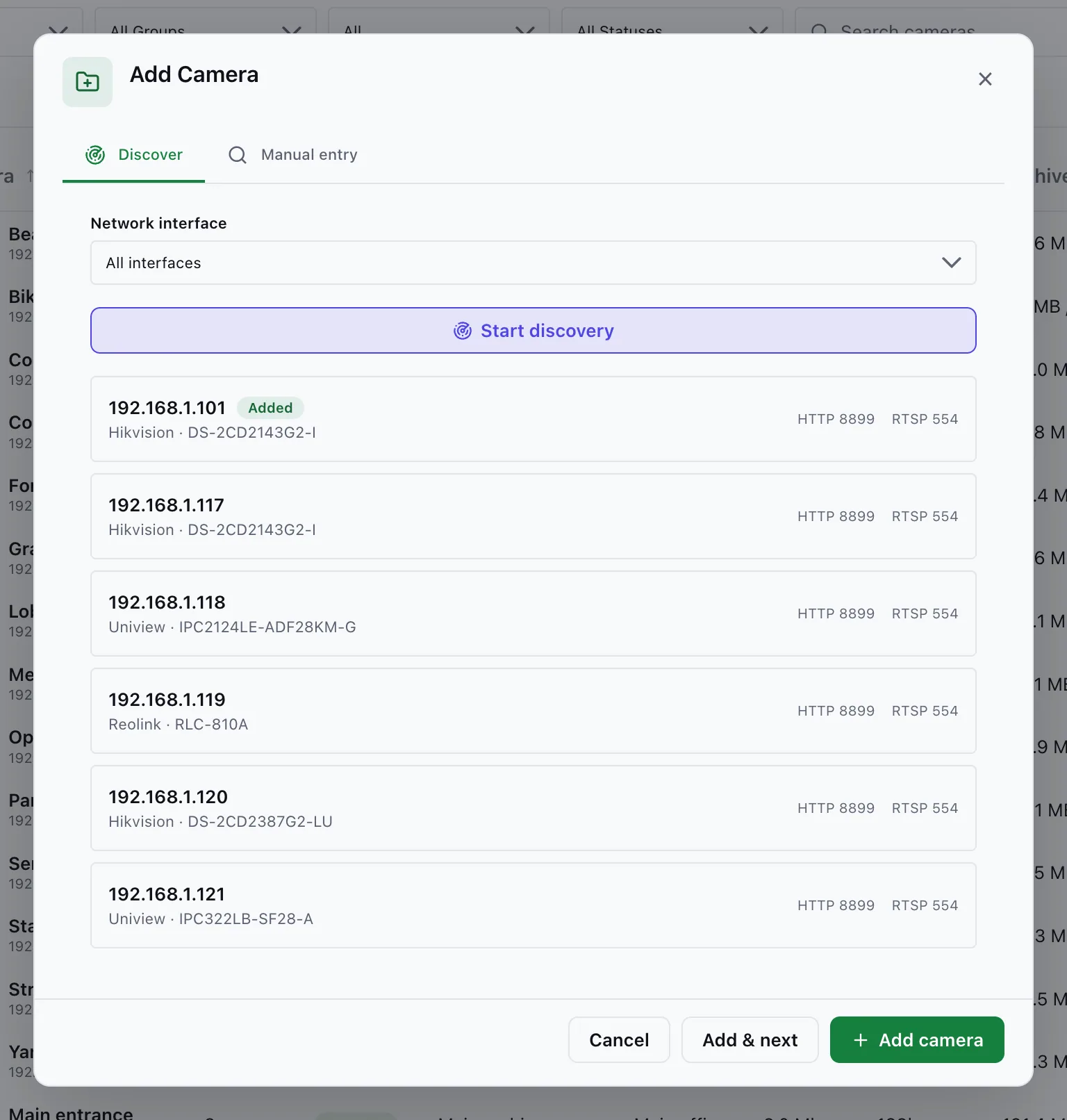
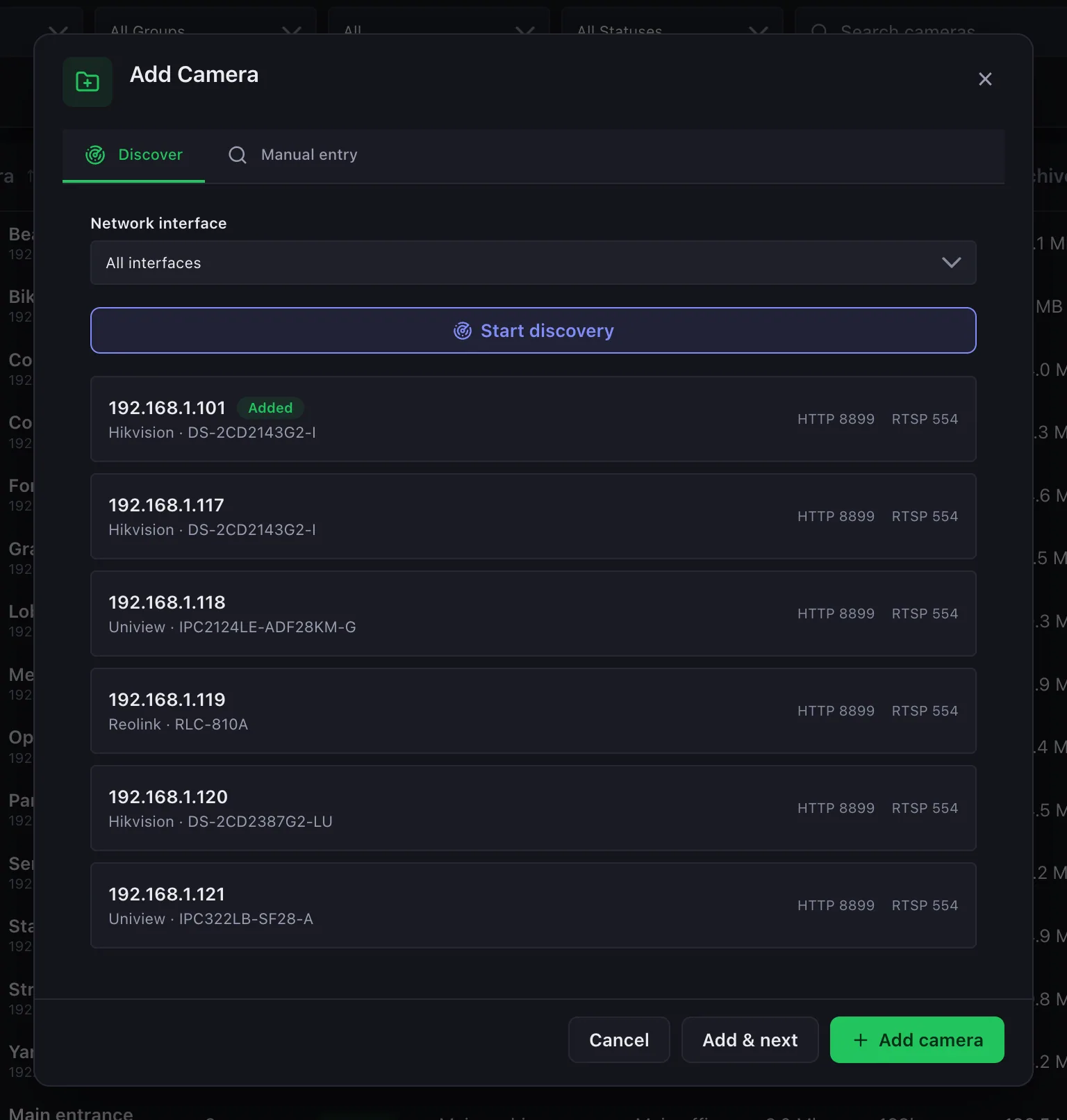
- Discover — pick a Network interface and click Start discovery. Click a found camera to fill its host and ONVIF port. No multicast on your network? Use the Manual entry tab. Cameras you already have are marked Added (still selectable — an NVR has several channels on one address).
- Username / Password — the camera account. It is used for both ONVIF and RTSP.
- ONVIF port — optional. Filled by discovery; type it by hand for a manual camera (
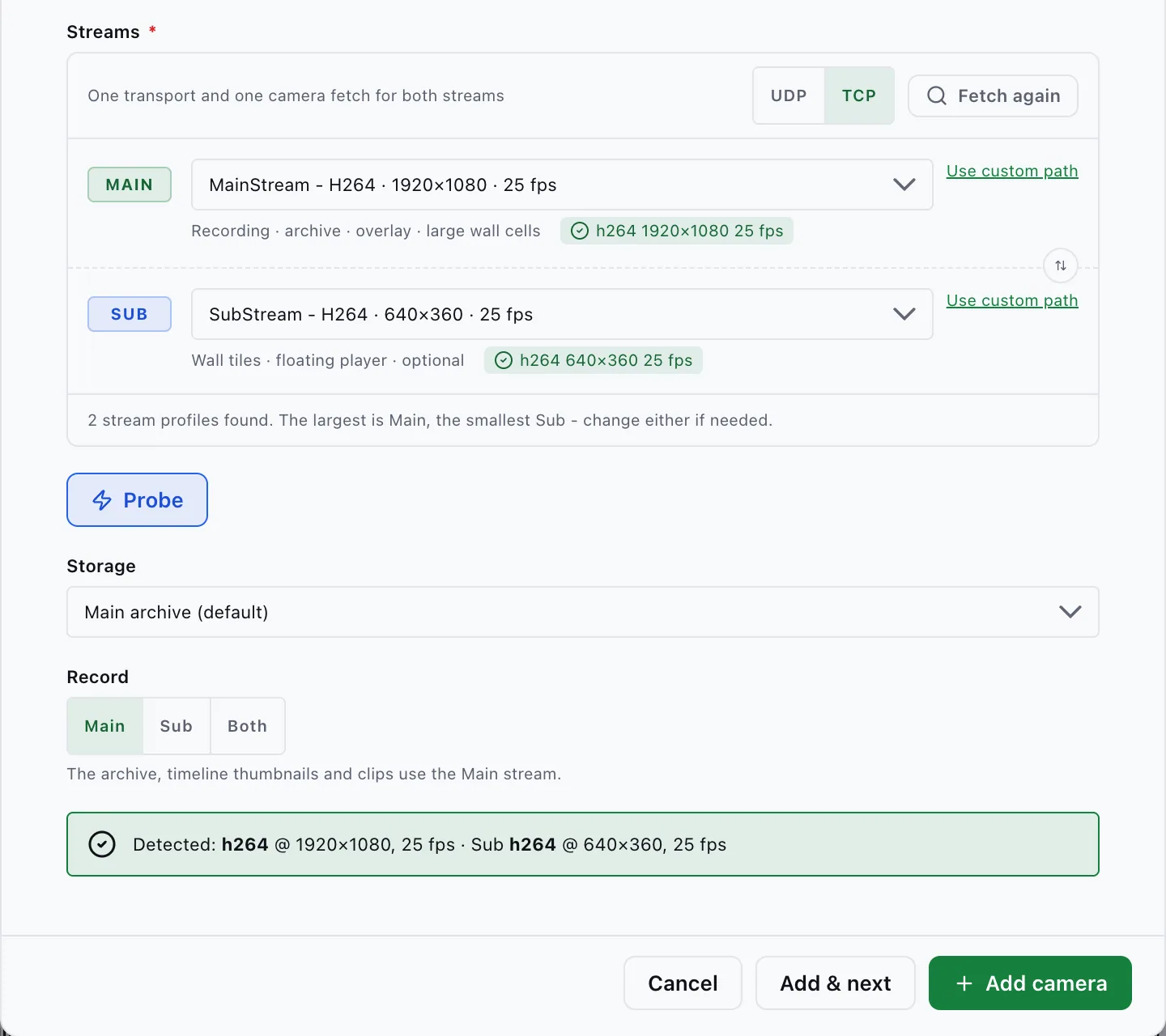
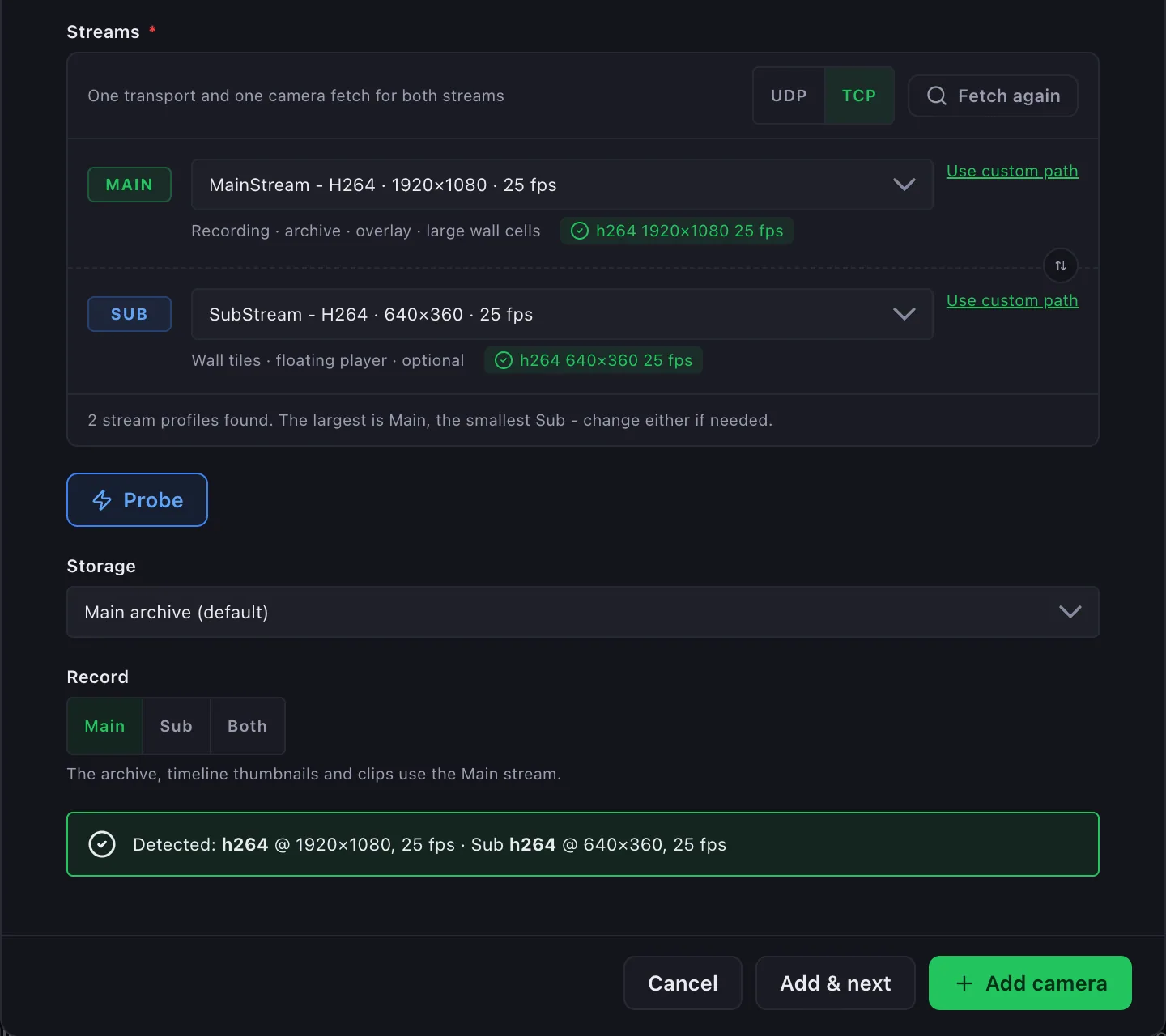
80on most models). Without it there is no profile fetch and no PTZ. - Streams — click Fetch from camera. The largest profile becomes Main, the smallest Sub. Pick None - tiles use Main for no Sub, or type a custom path. The ⇅ button swaps them.
- RTSP transport — starts on TCP. Use UDP only on a LAN you trust; UDP rarely survives NAT.
- Probe — checks both streams and shows their sizes (Main 2560×1440 · Sub 640×360 reachable). A failing Sub is a warning; Main still works.
- Record — what the archive keeps: Main (default), Sub, or Both.
- Click Add camera, or Add & next to create it and keep the dialog open for the next one.
Pasting an RTSP URL that ends in #tcp (or #udp) into Host selects that transport.
Main and Sub streams
Section titled “Main and Sub streams”Most cameras offer a full-resolution stream and a light one. Vision plays the light one where the picture is small:
| Where | Stream |
|---|---|
| Wall tiles at 3×3 and denser, small cells of 1+5 / 1+7, floating player | Sub |
| 1×1, 2×2, the big hotspot cell, camera overlay, camera page | Main |
| Archive, timeline thumbnails, clips | What Record keeps |
A tile whose Sub fails plays Main and shows Main (Sub down). Each Sub uses one more Alta receiver (Alta allows 256 receivers + channels per server) and one more RTSP session on the camera.
Add a Sub to existing cameras
Section titled “Add a Sub to existing cameras”- One camera: on the camera page, click Fetch from camera next to Sub stream path, then Use.
- Many cameras: select them in the list, then Actions → Find Sub streams. The result lists each camera as Added, Skipped (already has a Sub, no ONVIF, no smaller profile) or Failed with the reason.
If Main and Sub are the wrong way round, click Swap Main and Sub on the camera page.
Camera list
Section titled “Camera list”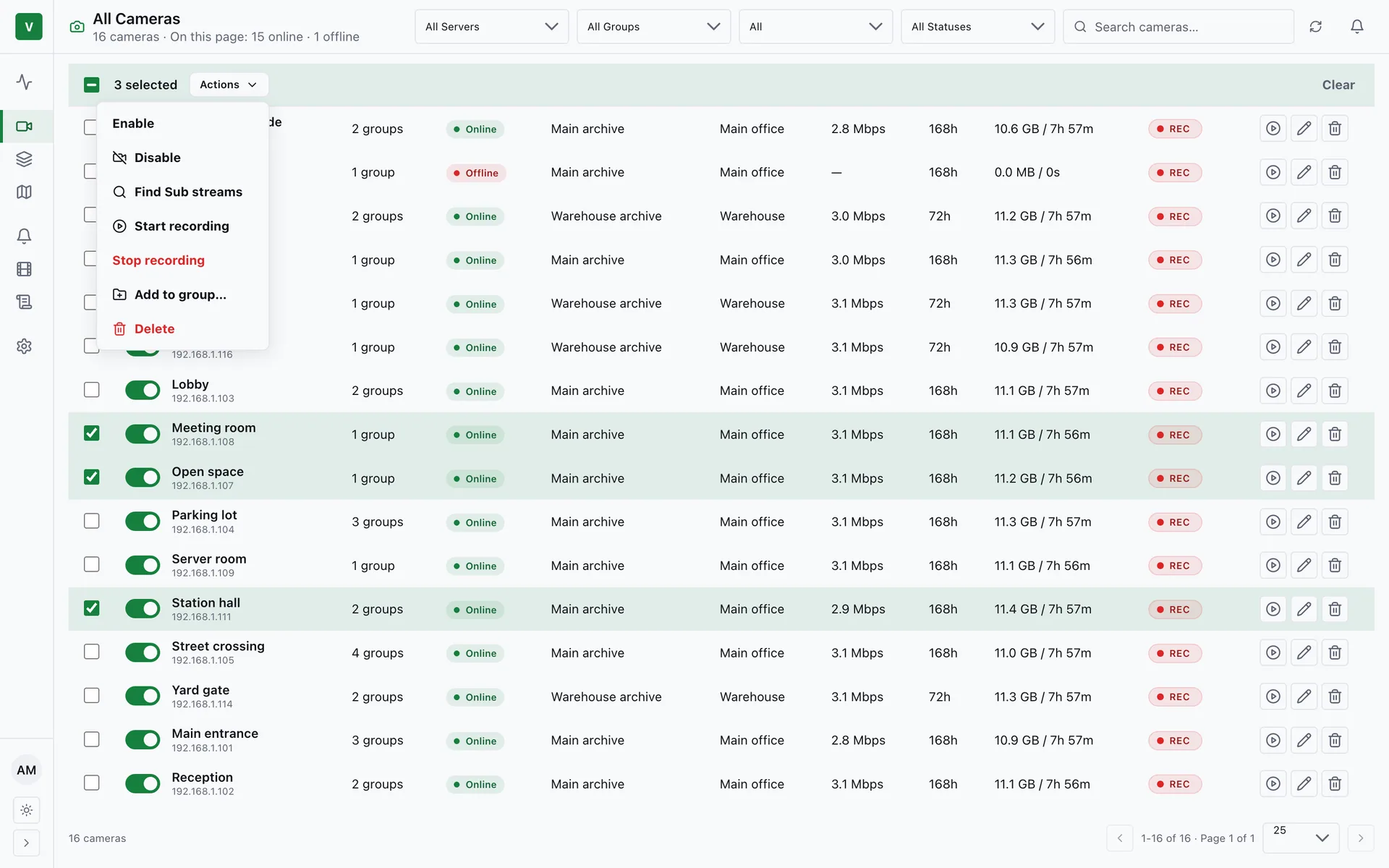
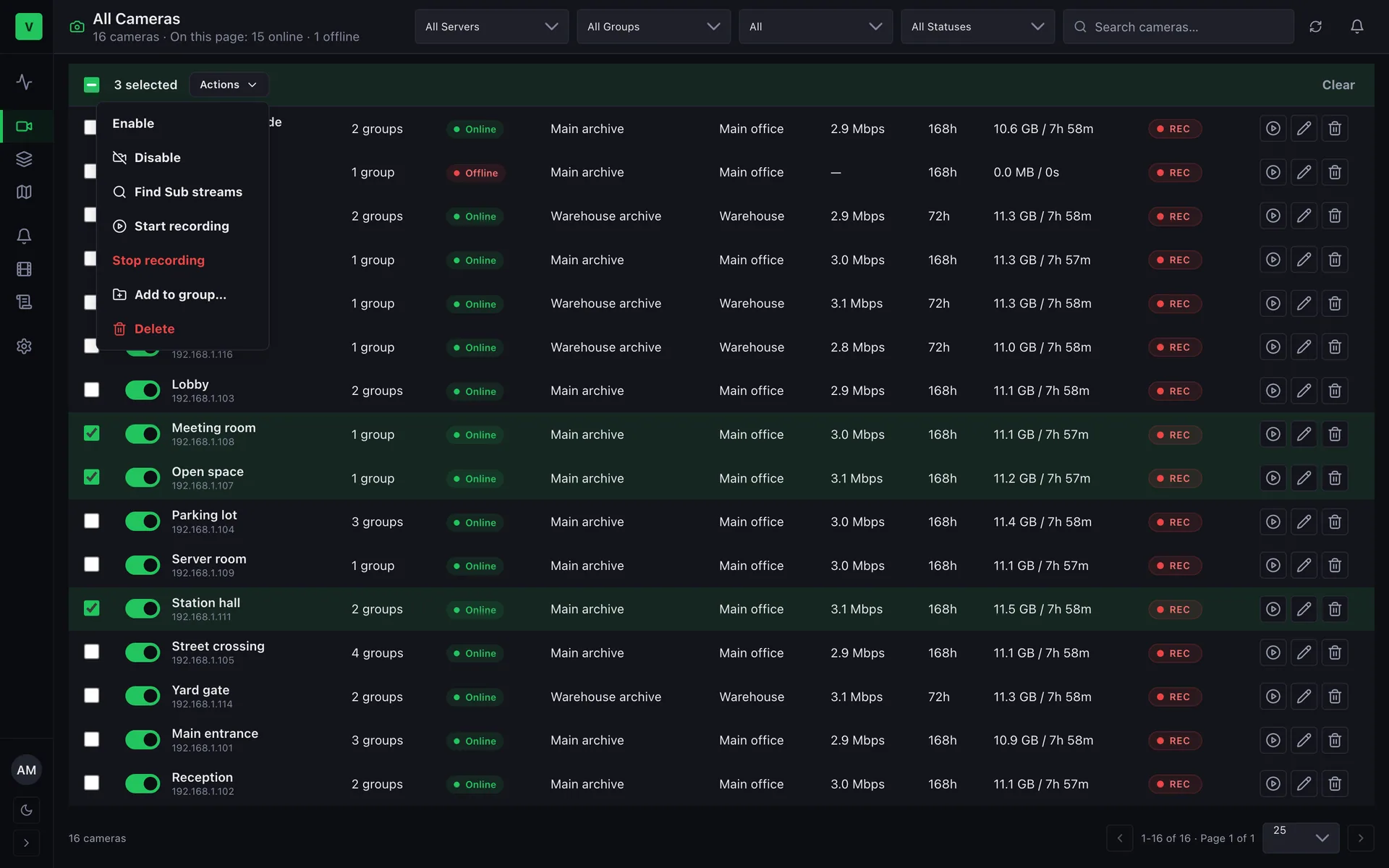
- Search matches the camera name or its IP/host.
- Filters: status, enabled state, Alta server (all / active / paused), and group. Search, filters, sort, and page are kept in the URL, so Back and shared links restore them.
- Sort by Camera, Status, or Created sorts all cameras, not just the visible page. Status puts offline cameras first.
- Recording column is a REC switch. Turning recording off asks first — Alta deletes that camera’s archive.
- Archive column (enable it in the column picker) shows the real archive size and recorded time.
- Status badge on an offline camera explains what to try in its tooltip.
Select rows to act on many cameras at once: Enable, Disable, Start recording, Stop recording, Delete, Add to group…, Find Sub streams. If some fail, a warning names each failed camera and keeps only those selected for a retry.
Non-admins see only the cameras in their groups.
Camera page
Section titled “Camera page”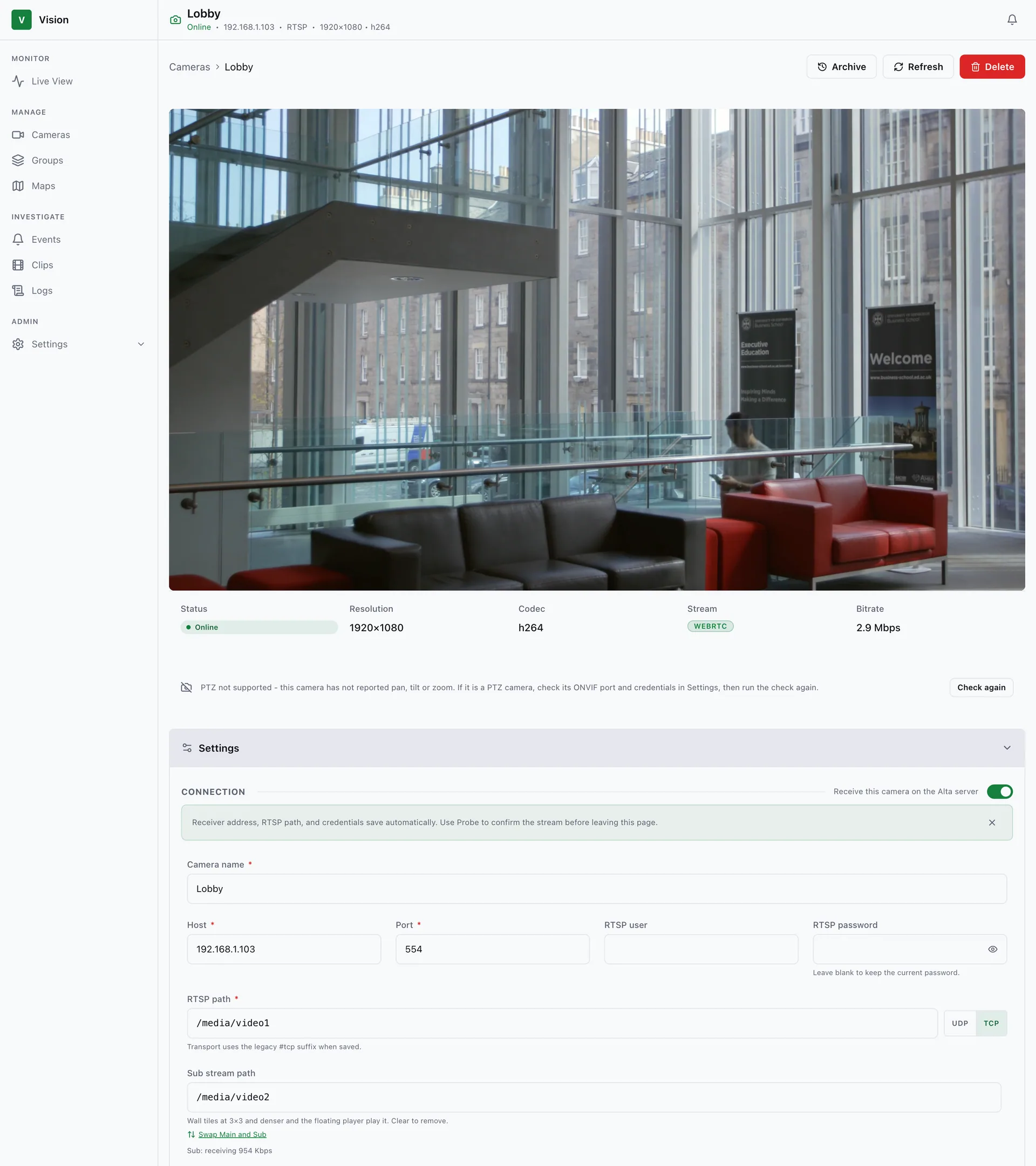
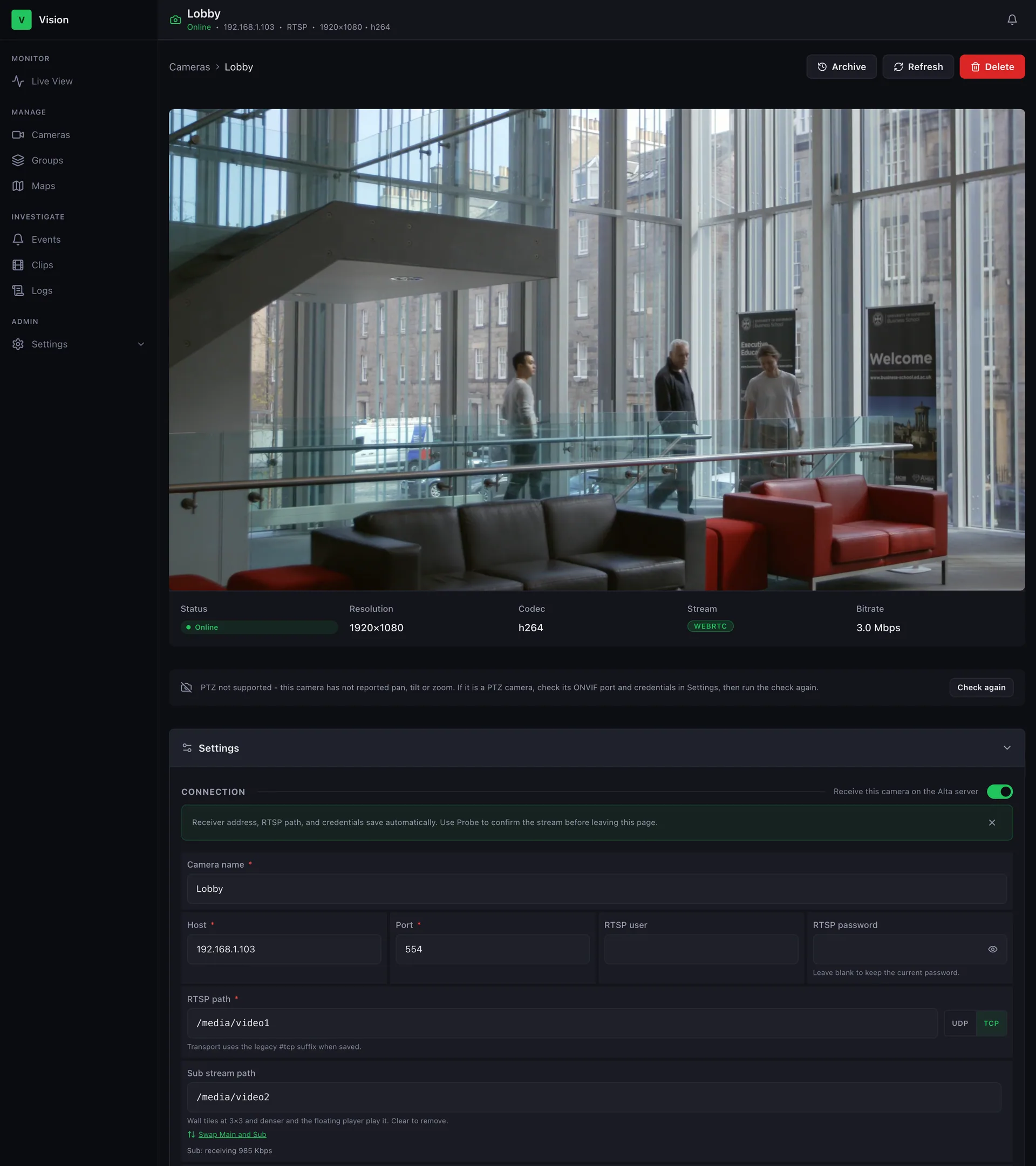
The page shows the player with a status strip (resolution, FPS, bitrate, and the Stream — WebRTC or HLS), and the Archive button. Below it:
- Settings → Connection — host, port, RTSP path, Sub stream path (with the Sub’s live state, e.g. Sub: receiving 140 Kbps), credentials, and Probe.
- Settings → Storage & retention — storage target, retention (1–8760 hours), Record.
- Settings → ONVIF — ONVIF port, user, and password. Saving them re-reads PTZ support, manufacturer, and model.
- Recent Events — click an event to open the archive at that moment, or Create clip.
- Info & Status — the Device card (manufacturer, model, capabilities) and recent status changes.
Changing a Main path or transport re-probes the stream in the background. Moving a camera to another host or port asks for its password again.
Camera status
Section titled “Camera status”| Status | Meaning |
|---|---|
| Online | Streaming normally |
| Degraded | Reachable, but no usable stream (e.g. zero bitrate) |
| Offline | Not reachable, disabled, or its Alta server is down |
| Paused | Its Alta server is paused |
| Provisioning | Just added, not yet streaming. Moves to Offline after 10 minutes |
Status follows Main only. A dead Sub does not make a camera offline; the camera page shows it in amber instead.
Camera stays Offline after a green Probe
Section titled “Camera stays Offline after a green Probe”Probe runs from the Vision host, but Alta pulls the stream from the Alta host. The camera page says so and, for UDP cameras, offers Switch to TCP. If it is already TCP, check that the Alta server can reach the camera’s host and RTSP port.
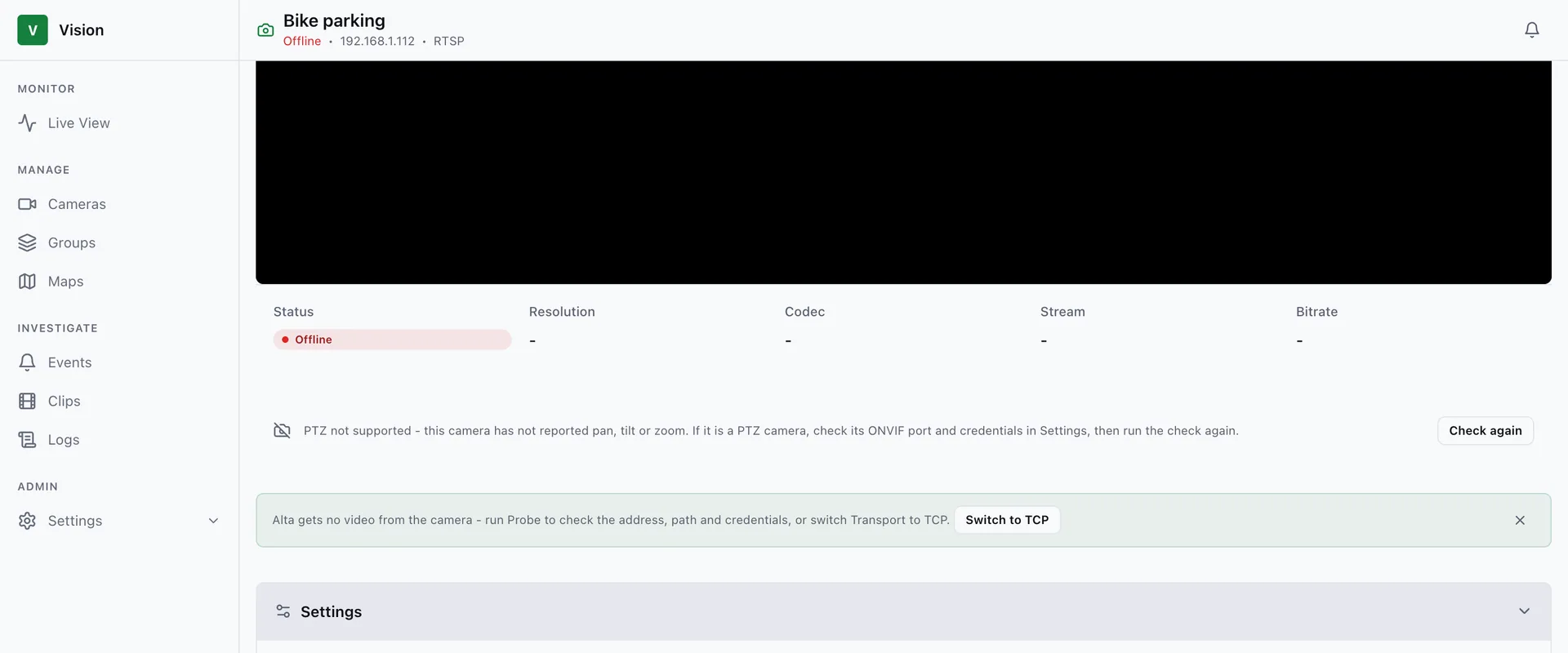
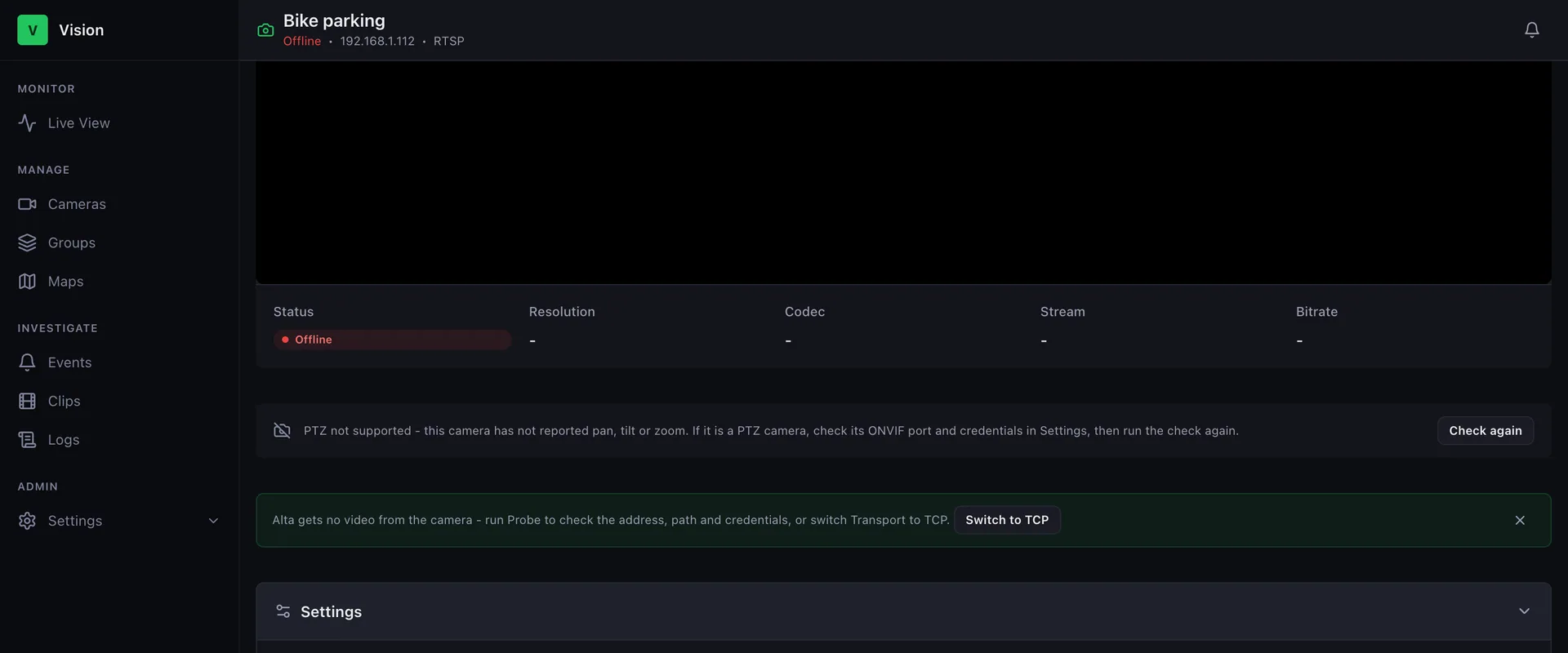
PTZ cameras get movement controls and presets in the camera overlay and on the camera page (users with PTZ permission only). Presets are read from the camera, so presets made in the camera’s own UI appear too. If PTZ is missing, click Check again or re-save the ONVIF credentials.