Archive Playback
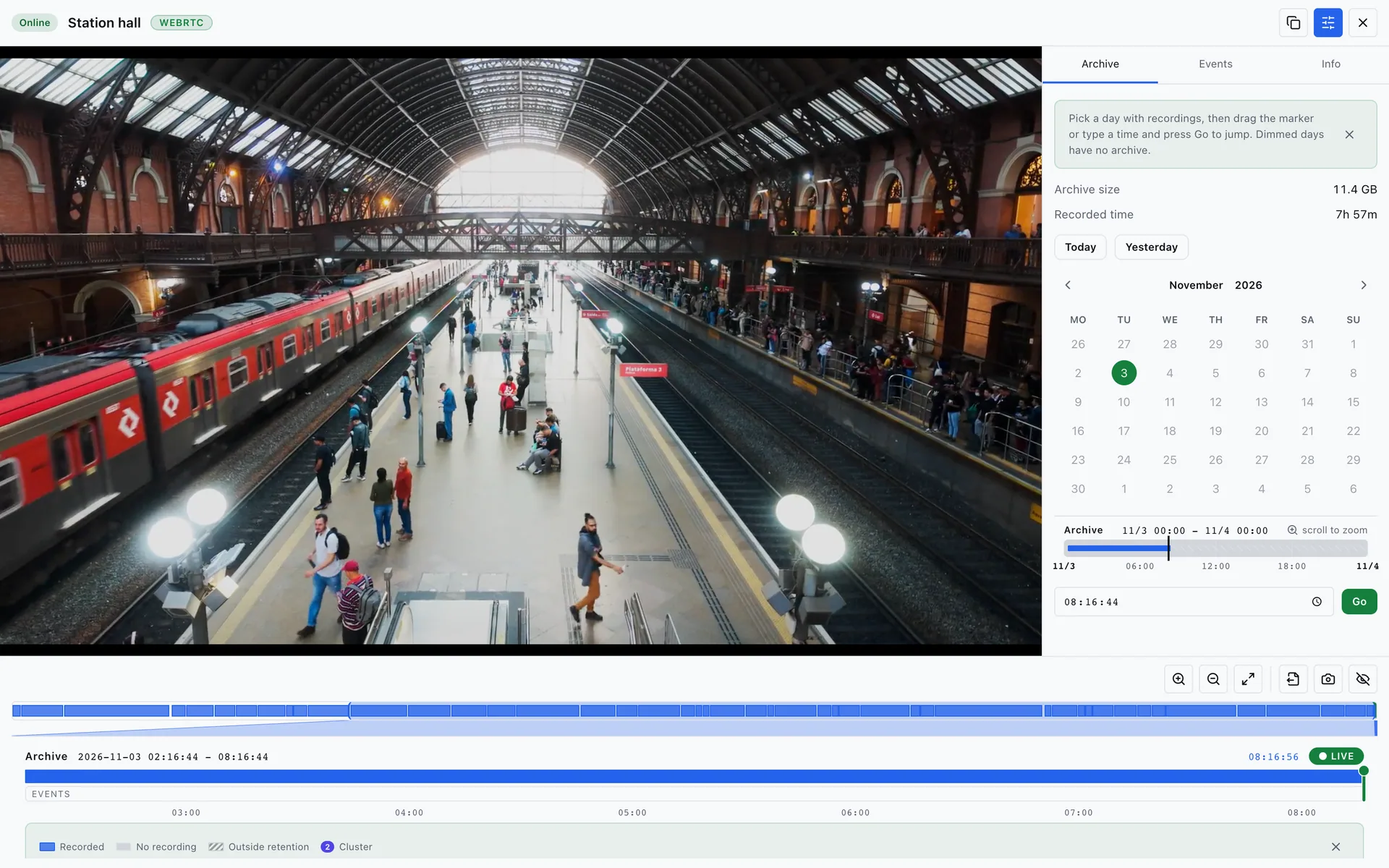
Every recording camera can be replayed on a timeline. Open a camera and switch to the Archive tab — in the camera overlay it is the default tab. The camera page and the View archive button on live tiles open it directly.
Timeline
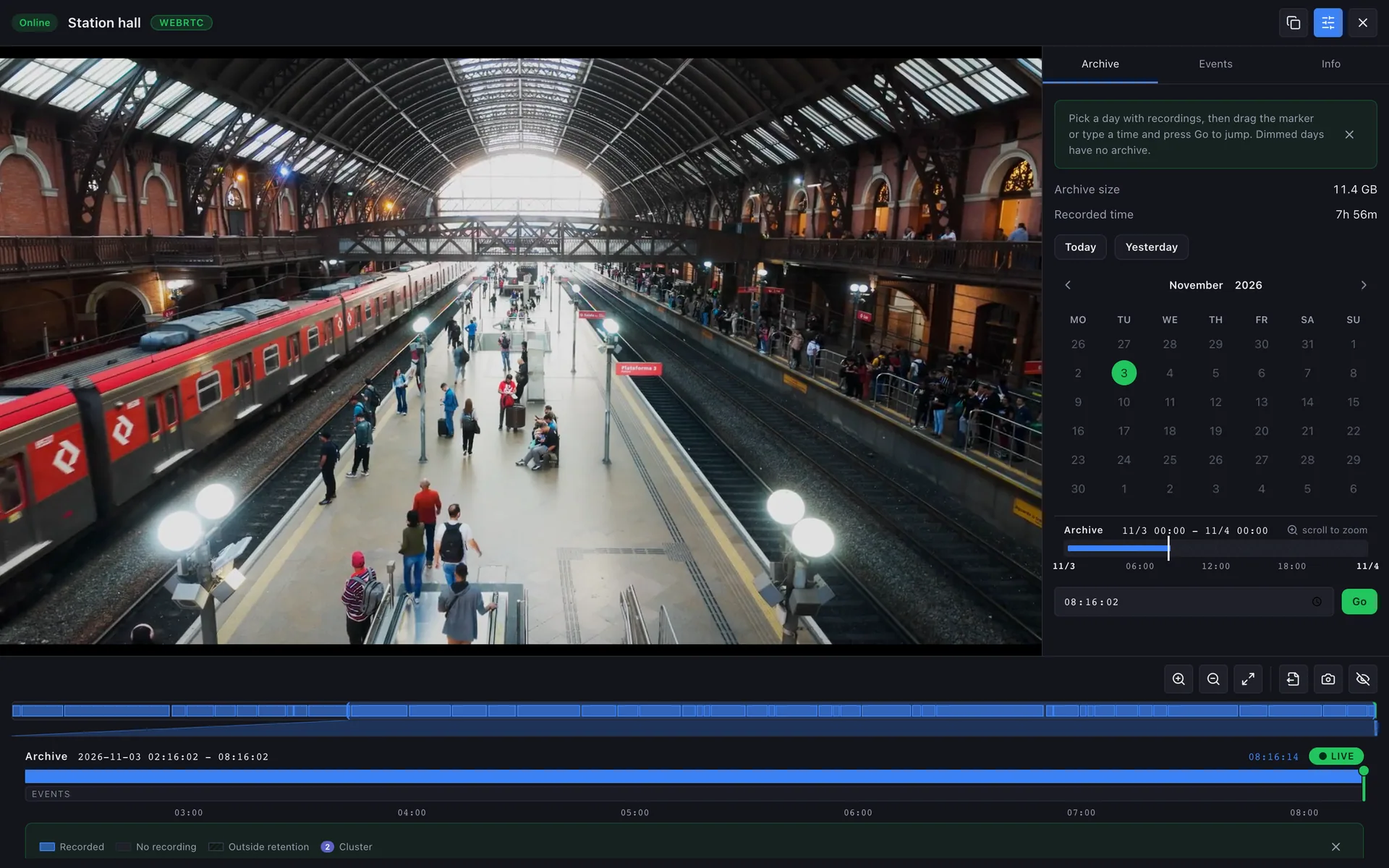
Section titled “Timeline”- Click the timeline to jump to any moment. The green playhead marks the current position.
- Hover over recorded footage to see a thumbnail of that moment.
- Zoom to see minutes or days.
- Pan — drag the hour labels under the timeline, or hold the right mouse button on the track and drag.
- Event markers jump straight to activity.
- Speed — play faster or slower.
A new camera opens zoomed to what it has recorded; the part before its first recording reads Recording since 14:40. Stretches recorded only from the Sub stream are hatched (Low resolution).


Above the calendar, the Archive tab shows the real archive size and recorded time.
Camera without recording
Section titled “Camera without recording”If recording is off, the tab says Recording is off for this camera. Users who may edit the camera get Turn on recording.
Export a clip
Section titled “Export a clip”Select a range on the timeline and export it. The clip appears under Investigate → Clips when ready. An admin must first set an output storage under Settings → Storages.
Non-admins can open the archive only for cameras in their groups. What is available depends on recording and retention — see Storages & Retention.